

Twitter DM: How To Send Direct Messages on Twitter/X: Complete Guide
Key Takeaways
- You can send direct messages by clicking the envelope icon on profiles or using the messages tab in your main navigation
- Only users who follow you or have enabled open DM settings can receive your private messages
- Twitter allows up to 500 DMs per day and supports group conversations with up to 150 participants
- DMs can be edited after sending, but each message can only be edited up to five times, and include text, images, videos, and other media attachments
- You can pin up to six conversations to the top of your DM inbox for easy access
- You can send and receive DMs via SMS if your X account is connected to your mobile phone
- Privacy settings control who can send you message requests and whether read receipts are visible to other users
Direct messages have evolved from Twitter’s simple private messaging feature into a sophisticated communication channel on X. Whether you’re connecting with friends, providing customer service, or building business relationships, understanding how to effectively use Twitter’s DM system is essential for maximizing your social media presence.
Since the platform’s rebrand to X, the core functionality of direct messages remains unchanged, but new features like end-to-end encryption, disappearing messages, and enhanced media sharing have transformed DMs into a more robust messaging experience. This comprehensive guide will walk you through everything you need to know about sending, receiving, and managing direct messages on the platform.

How to Send a Direct Message on Desktop
To send messages via direct message on the desktop version of Twitter, follow these steps. Sending a direct message on the desktop version of Twitter is straightforward once you know where to find the right controls. The process begins with accessing your direct message inbox through the main navigation.
To start a new direct message conversation, click the messages tab in the left sidebar of your Twitter homepage. This will open your DM inbox, where you’ll see all your existing private conversations listed chronologically. Look for the new message icon, typically represented by an envelope with a plus sign or a “New message” button at the top of this section.
When you click the new message button, a compose window will appear with an address box where you can search for recipients. Type the person’s username, display name, or handle to find the user you want to message. Twitter’s search function will display matching results as you type, making it easy to locate the right person even if you don’t remember their exact handle.
Once you’ve selected your recipient, you’ll see a text box where you can compose your message. Unlike tweets, direct messages support longer messages without character restrictions, giving you more space to communicate effectively. Type your message and click or tap the send icon to send it immediately, or use Shift+Enter to create a new line without sending.
Before sending, you can attach media using the photo icon or gif icon located near the text box. These attachment options allow you to share images, videos, GIFs, and other files directly within your private message. The platform displays visual indicators showing when your message has been delivered and read, assuming both parties have read receipts enabled in their settings.
Still doing this manually?
Founders waste hours replying, searching, and engaging manually on X.
Tweetfull automatically finds and engages in conversations that bring you inbound leads. See How It Works →
How to Send a DM on Mobile (iOS/Android)
The mobile experience for sending direct messages is optimized for touch interaction and provides quick access to your most important conversations on any mobile device, such as a smartphone or tablet. Both iOS and Android versions of the Twitter app (now called the X app) follow similar interface patterns, making the process consistent across mobile platforms.
Open your X app and locate the envelope icon in the bottom navigation bar. Tapping this icon takes you directly to your direct message inbox, where you can view all your ongoing private conversations. The interface displays conversation participants, recent message previews, and timestamps for easy navigation.
To start a new conversation, tap the envelope icon with a plus sign, usually positioned prominently at the top of your DM inbox. This action opens the new message interface, where you’ll find a search bar to locate your intended recipient. The mobile search function works similarly to the desktop version, allowing you to find users by typing their username, display name, or @handle.
After selecting your recipient from the search results, you’ll see the message composition screen with a text box at the bottom. Mobile keyboards provide additional functionality through integration with the device’s media library and camera features. Tap the paper airplane send icon to send your typed message, or use the photo icon to access your device’s camera roll for sharing images and videos.
Mobile platforms also support direct camera access for taking photos or videos within the DM interface, streamlining the process of sharing visual content. Voice messages and other multimedia options may appear depending on your device capabilities and app version.
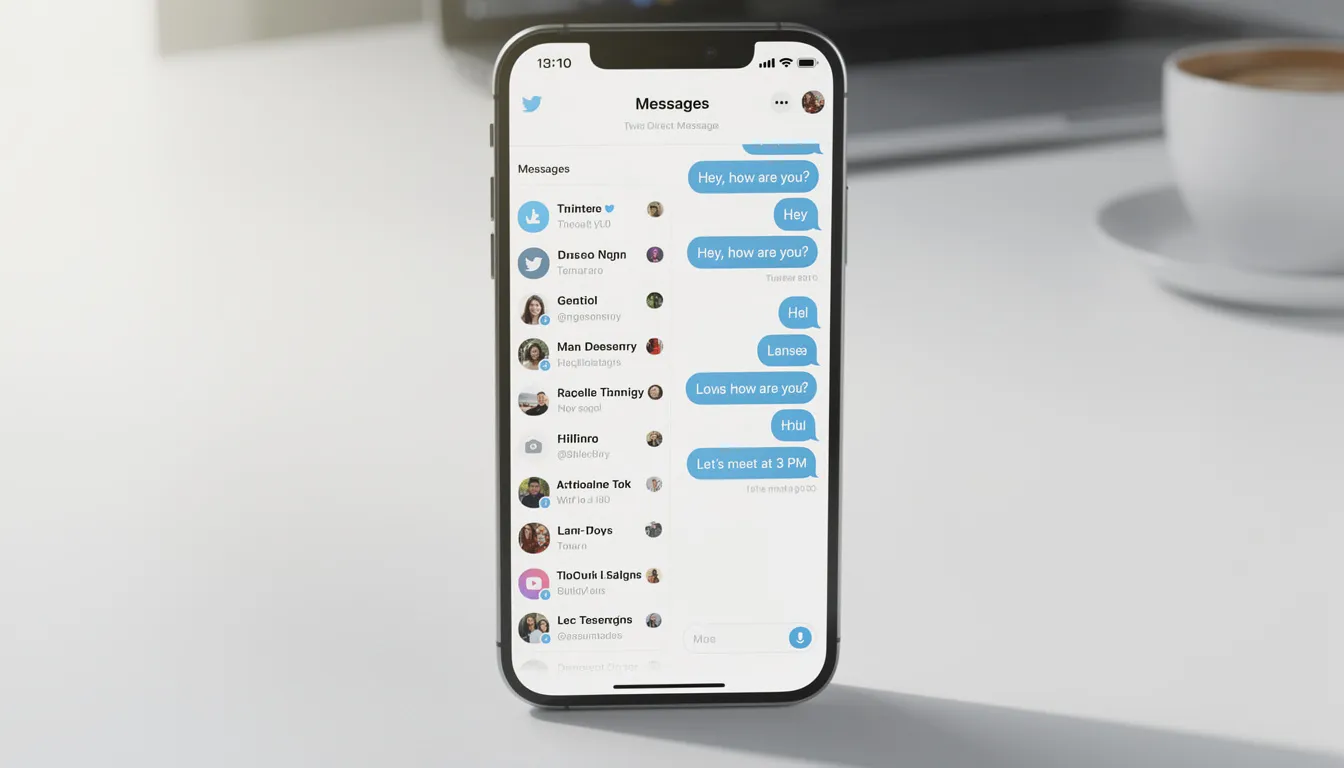
Understanding DM Privacy Settings
Twitter’s privacy settings for direct messages provide granular control over who can contact you and how those interactions appear in your inbox. These settings balance accessibility with protection from unwanted messages, giving users flexibility in managing their communication preferences.
The default privacy setting restricts direct message access to people you follow, creating a mutual connection requirement for most DM interactions. This approach significantly reduces spam and unsolicited messages while maintaining open communication channels with your chosen connections. Users who want broader accessibility can modify these restrictions through their account settings.
Enable “Allow message requests from everyone” in your privacy and safety settings to receive DMs from any twitter account, regardless of follow relationships. When this setting is active, messages from users you don’t follow appear in a separate direct message requests folder, which is found in the direct messages section rather than your main direct message inbox. This separation helps you review and filter incoming messages using the controls available in the direct messages section before deciding to engage in conversation.
The platform includes a quality filter that automatically evaluates incoming message requests, identifying and segregating low quality messages that may contain spam or inappropriate content. This filter works behind the scenes to improve your overall messaging experience without requiring manual intervention for obvious spam attempts.
Advanced privacy options include settings for read receipts, which control whether other users can see when you’ve viewed their messages. Disabling read receipts provides additional privacy by preventing others from knowing your message reading patterns, though this also means you won’t see read status for messages you send.
Want This Done For You Automatically?
Instead of manually finding posts to engage with, Tweetfull tracks keywords and engages in relevant conversations automatically.
- ✔ Targeted keyword campaigns
- ✔ Smart engagement automation
- ✔ Built for early-stage SaaS founders
Who Can You DM on Twitter
Understanding the eligibility requirements for sending direct messages helps avoid confusion when the message option doesn’t appear or your messages aren’t delivered. Twitter’s DM system operates on a permission-based model that prioritizes user safety and consent.
Any user who follows your twitter account can always send and receive direct messages with you, regardless of their other privacy settings. This mutual follow relationship creates the most straightforward path for DM communication and ensures both parties have expressed some level of interest in connecting.
Users with open DM settings display visible indicators that they accept messages from anyone. Look for the envelope icon on someone’s profile page – its presence indicates they’ve enabled message requests from everyone. Business accounts and customer service profiles often maintain open DM policies to facilitate customer support interactions and inquiries.
The system automatically prevents messaging attempts to users who have blocked you, as blocking removes all communication capabilities between accounts. Similarly, you cannot send direct messages to suspended or deactivated accounts, as these profiles are no longer accessible for interaction.
Premium account holders may have expanded messaging capabilities, including the ability to message users who don’t follow them back, provided the recipient’s settings allow such contact. These enhanced features reflect the platform’s tiered service model and provide additional value for paying subscribers.
Managing Your DM Conversations
Effective direct message management becomes increasingly important as your conversation volume grows. Twitter provides several organizational tools in the direct messages section to help you maintain control over your direct message inbox and find important conversations quickly.
The search functionality within your messages tab allows you to locate specific conversations using keywords, usernames, or phrases from message content. This search capability extends across your entire conversation history, making it easy to find that important piece of information shared weeks or months ago in a private conversation.
Pin up to six of your most important conversations to the top of your inbox for instant access. Pinned conversations remain at the top regardless of recent activity, ensuring your most valuable business contacts, close friends, or ongoing projects stay readily accessible. This feature is particularly useful for customer service accounts or anyone managing multiple ongoing conversations.
When conversations become overwhelming or irrelevant, you have options for cleanup and organization. Delete messages using the select delete message option from the message menu, or remove entire conversations from your view using the select delete conversation function. Remember that deletion typically only affects your view of the conversation – other participants will still retain their copy unless they also delete it.

Editing and Organizing Messages
Twitter’s message editing capabilities provide flexibility that many messaging platforms lack. Unlike most social media direct messaging systems, Twitter allows you to edit sent messages with no time limit, giving you permanent control over your message content. Access the editing options by selecting the message you want to modify and choosing edit from the menu. You can also click the information icon in the conversation interface to access additional message options, such as editing or organizing.
Edited messages display an “Edited” label for transparency, ensuring all conversation participants understand when content has been modified after sending. Each message can only be edited up to five times, providing multiple opportunities to refine your communication without starting over.
React to messages with emojis for quick responses that don’t require full text replies. These reactions appear next to the original message and provide an efficient way to acknowledge receipt, express agreement, or show appreciation without cluttering the conversation with short text responses.
Forward important messages to other conversations or users when you need to share information across multiple contexts. The forward feature preserves the original message context while allowing you to distribute relevant information to appropriate recipients.
Group Conversations on Twitter
Group messaging, also known as the group message feature, expands Twitter’s communication capabilities beyond one-on-one conversations by allowing users to send messages to multiple recipients simultaneously. These group chats support up to 150 participants, making them suitable for team coordination, community building, or informal social gatherings.
Creating a group conversation starts with the same new message process, but instead of selecting a single recipient, you add multiple usernames when composing your message. All participants receive notification of the group creation and can immediately begin contributing to the shared conversation thread.
Group dynamics differ significantly from individual conversations, as all participants can view all messages and add new members to the group. This open participation model encourages collaborative discussion but requires thoughtful consideration of who should be included and what information should be shared in the group setting.
Any group member can add new participants, expanding the conversation organically as needs evolve. However, this capability also means group composition can change without your direct control, so establishing group guidelines early can help maintain appropriate boundaries and conversation focus.
Leave group conversations at any time without notifying other participants, providing a discrete exit option when conversations no longer serve your interests. The group continues functioning normally after your departure, and remaining members may not immediately notice your absence unless they check the participant list.
Advanced DM Features
Beyond basic messaging, Twitter offers sophisticated features that transform direct messages and Twitter Threads into a comprehensive communication platform. These advanced capabilities rival dedicated messaging apps and support complex business workflows and personal communication needs.
Share tweets directly through DMs using the share button available on any post in your timeline or search results. This feature embeds the original tweet within your private message, preserving context and formatting while enabling private discussion about public content. Recipients can view the shared tweet and respond within the DM thread.
Snooze notifications for specific conversations when you need to focus but don’t want to leave the conversation entirely. Options include snoozing for one hour, eight hours, one week, or indefinitely, giving you flexible control over when you receive alerts from different conversations.
Connect your mobile phone number to enable SMS integration, allowing you to send and receive direct messages via text messages from your mobile device when you don’t have app access. Keep in mind that message delivery via SMS may depend on your service provider, and message length or delivery issues can be affected by your service provider’s policies. This feature bridges the gap between social media messaging and traditional text messaging, ensuring continuous communication regardless of platform availability.
Disable read receipts in your account settings to prevent others from seeing when you’ve viewed their messages. This privacy feature gives you more control over response expectations while maintaining your ability to see read receipts from users who keep the feature enabled.
DM Requests Management
The message requests system provides a filtering layer between your main inbox and messages from unknown users, helping you manage unsolicited contact while remaining open to legitimate new connections. Understanding how to effectively manage these requests enhances your overall Twitter messaging experience.
Review message requests in a separate inbox section accessible from your main messages tab. This separate space allows you to evaluate incoming messages from non-followers without cluttering your primary conversation list with potentially unwanted content.
Accept message requests to move conversations into your main inbox, where they function like any other direct message conversation. Acceptance signals your willingness to engage and enables full messaging features between you and the requester.
Delete unwanted requests without notifying the sender, providing a clean way to decline communication attempts without creating awkward social situations. Deleted requests disappear from your requests folder and don’t generate any notification to the original sender.
Media attachments in requests remain hidden until you accept the conversation, protecting you from potentially inappropriate visual content. This safety feature ensures you can evaluate text-based requests first before exposing yourself to images or videos from unknown users.
Disabling Read Receipts in DMs
Maintaining privacy in your private conversations is easy with Twitter’s option to disable read receipts. If you prefer not to let others know when you’ve read their direct messages, simply head to your account settings. From there, select “Privacy and Safety,” then locate the option labeled “Show read receipts.” Toggle this setting off to disable read receipts for all your DMs. Once disabled, neither you nor your conversation partners will be able to see when a message has been read. This feature is especially useful for users who want more control over their online presence and wish to manage their direct message interactions without the pressure of immediate responses. You can adjust this setting at any time, allowing you to tailor your privacy preferences as your needs change.
Click Messages and Interactions
Accessing your direct message inbox on Twitter starts with the messages tab, which is represented by the envelope icon. On desktop, you’ll find this icon on the left side of your screen, while on mobile devices, it’s typically located at the bottom navigation bar. Clicking the envelope icon opens your direct message inbox, where all your private conversations are organized. Within the messages tab, you can start a new direct message, review message requests from other Twitter users, and manage your message settings for a more personalized experience. Navigating the messages tab efficiently is key to keeping track of ongoing conversations, responding to new messages, and ensuring you never miss important private interactions.
Avoiding Low Quality Messages in DMs
Keeping your direct message inbox free from low quality messages is essential for a positive Twitter experience. To minimize unwanted content such as spam or harassment, adjust your message settings to limit who can send you direct messages—choosing to receive messages only from people you follow or have interacted with. Twitter’s quality filter, found in your message settings, automatically screens incoming messages and helps reduce the visibility of low quality messages. If you do receive unwanted or inappropriate messages, you can report or block the sender directly from the DM interface. By proactively managing your message settings and using built-in filters, you can ensure that your direct message inbox remains focused on meaningful and respectful conversations.
Additional Tips for Effective Direct Messaging
To get the most out of direct messaging on Twitter, it’s important to combine clear communication with smart use of the platform’s features. Keep your messages concise and to the point, making it easier for recipients to understand your intent. Always be mindful of your tone and language, especially in private conversations, to maintain professionalism and respect. Enhance your messages by using Twitter’s media features, such as sending photos, videos, or GIFs, to make your communication more engaging. Regularly review your account settings, particularly your privacy and safety options, to control who can send you direct messages and how you receive notifications. Staying informed about new features and best practices will help you maximize the effectiveness of your direct messaging and ensure a secure, enjoyable experience on Twitter.
DM Security and Privacy Best Practices
Protecting your privacy and security in direct messages requires understanding both the platform’s built-in safeguards and developing personal habits that minimize risk. Twitter’s evolving security features provide a foundation, but user vigilance remains essential for safe messaging.
Never share sensitive information like passwords, financial details, or personal identification numbers through direct messages, even with trusted contacts. While Twitter has introduced end-to-end encryption for some conversations, most DMs remain accessible to the platform and potentially to bad actors who compromise accounts.
Exercise caution with links and attachments from unknown senders, as these can contain malware or lead to phishing sites designed to steal your credentials. Verify the sender’s identity through their profile and public activity before clicking any links or downloading files shared through DMs.
Report inappropriate content immediately using the report functionality available in conversation menus. This action helps Twitter identify problematic users and content patterns while protecting other users from similar experiences. Block users who send spam or inappropriate content to prevent further contact attempts.
Review your privacy settings regularly to ensure they align with your current communication needs and comfort level. As your Twitter usage evolves, your DM settings may need adjustment to maintain the right balance between accessibility and protection.

Troubleshooting Common DM Issues
Even with a solid understanding of how Twitter DMs work, you may encounter technical issues or unexpected limitations that prevent normal messaging functionality. Recognizing common problems and their solutions helps you maintain effective communication flow.
If you cannot send a direct message to someone, first verify that the recipient either follows your account or has enabled open message requests. The absence of an envelope icon on their profile typically indicates restricted DM settings that prevent your message from being delivered.
When you’ve reached your daily limit of 500 messages, you’ll need to wait a full 24 hours before you can send additional DMs. This limit resets exactly 24 hours after your first message of the previous day, not at midnight, so track your messaging timing if you frequently approach this threshold.
Missing envelope icons on profiles indicate that users have restricted their DM settings to followers only. In these cases, you’ll need to either follow the user and wait for them to follow you back, or find alternative ways to initiate contact through public mentions or replies.
Message delivery failures often stem from internet connectivity issues or app synchronization problems. Check your internet connection and try updating your Twitter app to the latest version if messages aren’t sending or receiving properly. Force-closing and reopening the app can also resolve temporary glitches.
Frequently Asked Questions
Can you send DMs to someone who has you blocked?
No, blocking on Twitter prevents all forms of communication between accounts, including direct messages. If someone has blocked you, you won’t see an option to send them DMs, and any existing conversation history will be hidden. The blocking is mutual – you also cannot receive messages from someone you’ve blocked.
What happens to your DMs if you deactivate your Twitter account?
When you deactivate your twitter account, your direct message conversations become inaccessible to you, but they remain visible to other participants. If you reactivate your account within 30 days, your DM history will be restored. After 30 days, Twitter permanently deletes deactivated accounts, and your messages cannot be recovered.
Can you schedule direct messages on Twitter?
Twitter does not currently offer native scheduling functionality for direct messages like it does for tweets. All DMs must be sent in real-time. However, some third-party social media management tools may provide DM scheduling capabilities, though these typically require careful setup and may have limitations based on Twitter’s API restrictions.
How do you know if someone has restricted their DMs?
Users with restricted DM settings won’t display an envelope icon on their profile page when viewed by non-followers. Additionally, if you attempt to share content with them via DM and don’t see their username in the recipient search, it likely means they’ve limited who can message them. Their bio may also explicitly state their messaging preferences.
Can Twitter DMs be subpoenaed or accessed by law enforcement?
Yes, Twitter can be compelled to provide DM content to law enforcement through valid legal processes such as subpoenas or court orders. While Twitter has introduced optional end-to-end encryption for some conversations, most DMs are stored on Twitter’s servers and remain accessible to the company. Users should not assume DMs are completely private from legal or governmental access.
Understanding X Is Step One. Getting Seen Is Step Two.
Tweetfull automatically puts your account in front of conversations that matter.
No bots. No spam. Just strategic engagement automation.Try Tweetfull Free